
Set Up Wi-Fi on OpenWrt
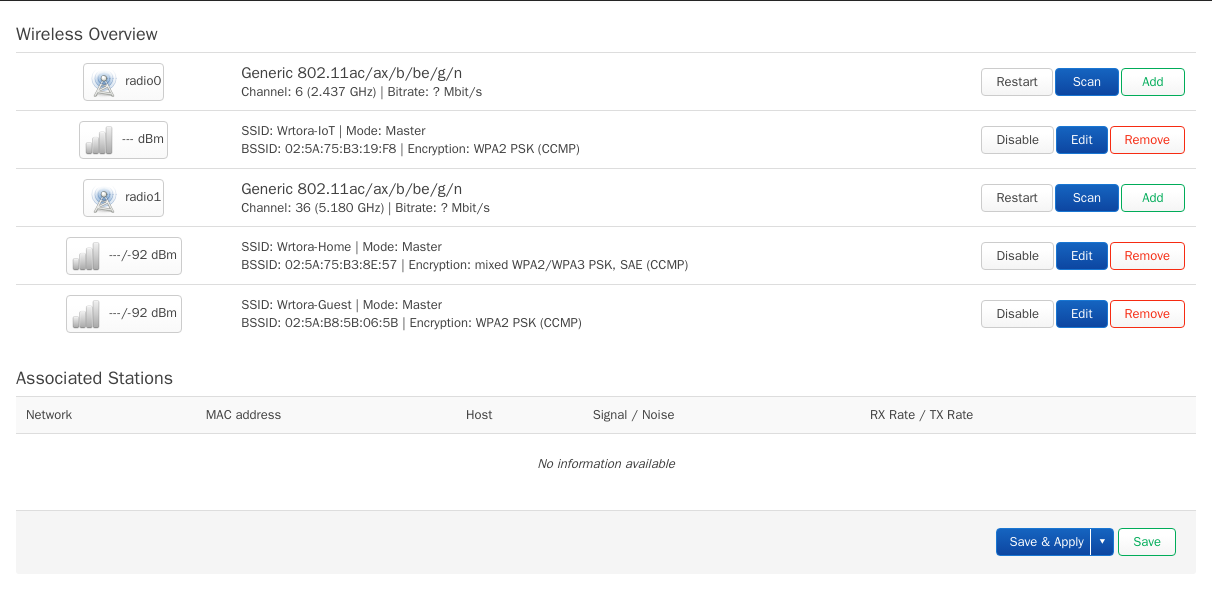
Wi-Fi lives under Network → Wireless. Each radio (2.4 GHz and 5 GHz) can broadcast one or more networks (SSIDs), and each SSID is attached to a network such as lan or guest.
1. Name and network
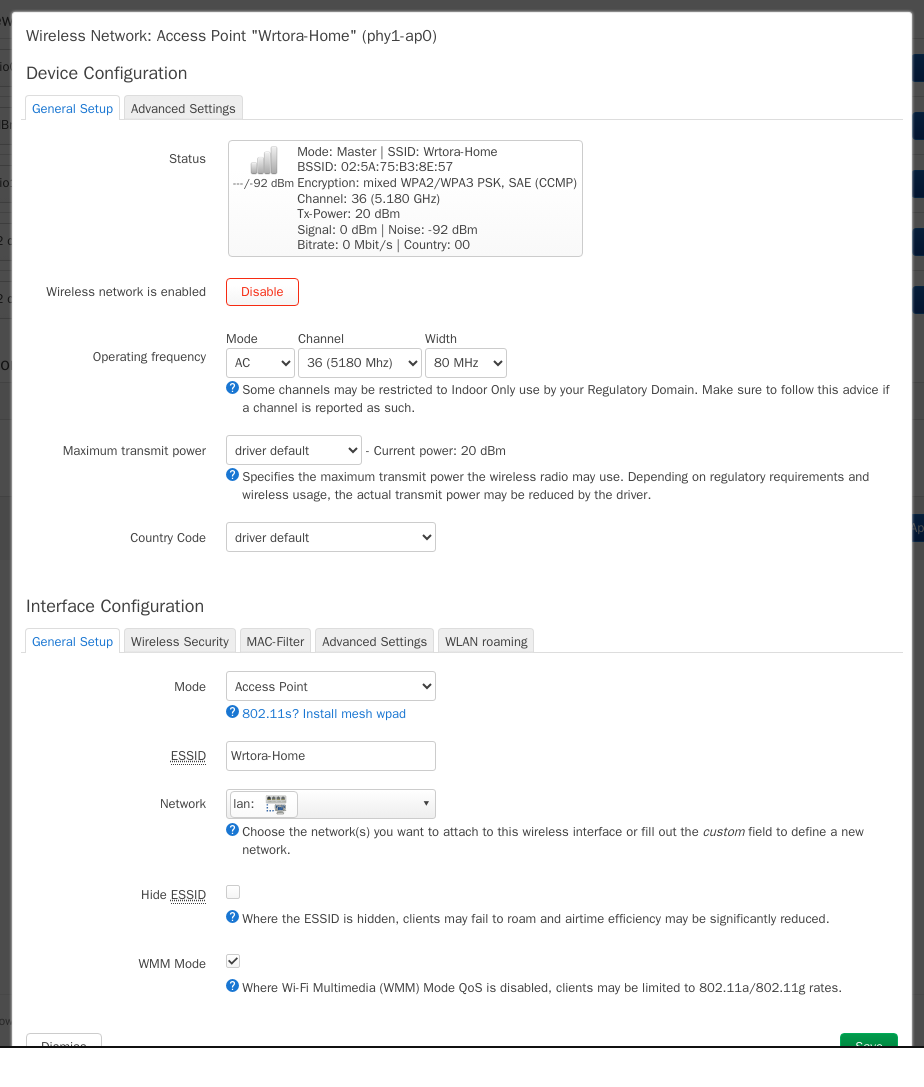
Click Edit on a network. Under Interface Configuration → General Setup, set the ESSID (the name people see) and the network it belongs to — lan for your own devices.
2. Channel and width
- 5 GHz: channel 36–48 with 80 MHz width is a safe start; use 160 MHz only where neighbours are few
- 2.4 GHz: channel 1, 6 or 11 with 20 MHz width — wider channels on 2.4 GHz cause more interference than speed
- Set Country Code to your country: it unlocks the channels and power allowed where you live
3. Security
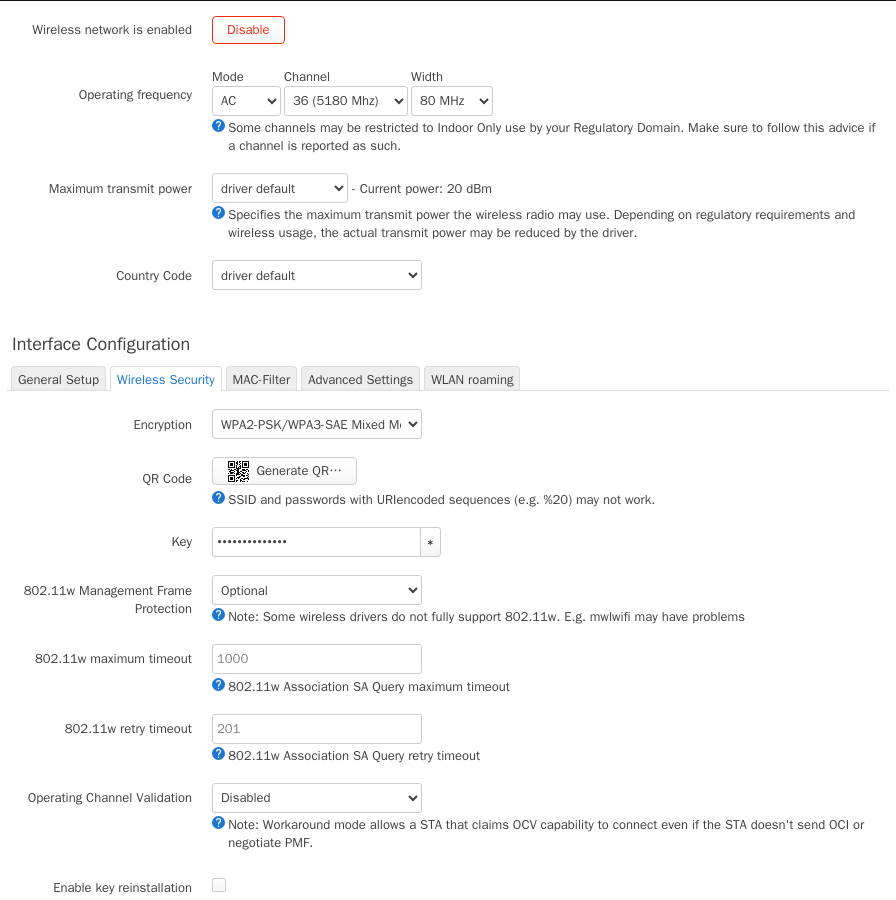
On the Wireless Security tab choose WPA2-PSK/WPA3-SAE Mixed Mode: new devices use WPA3, older ones still connect with WPA2. Use a long passphrase.
4. A guest network
- Add a second SSID on the same radio (Add on the radio row), attach it to a guest network and tick Isolate Clients
- The guest network needs its own interface and firewall zone so guests reach the internet but not your devices — the VLAN guide walks through it, and the same steps work without VLANs on a single router
5. More than one access point?
Use the same SSID and passphrase on every access point and enable 802.11r. See AC + AP: whole-home Wi-Fi with roaming.